Minuet 26.08: call for testers
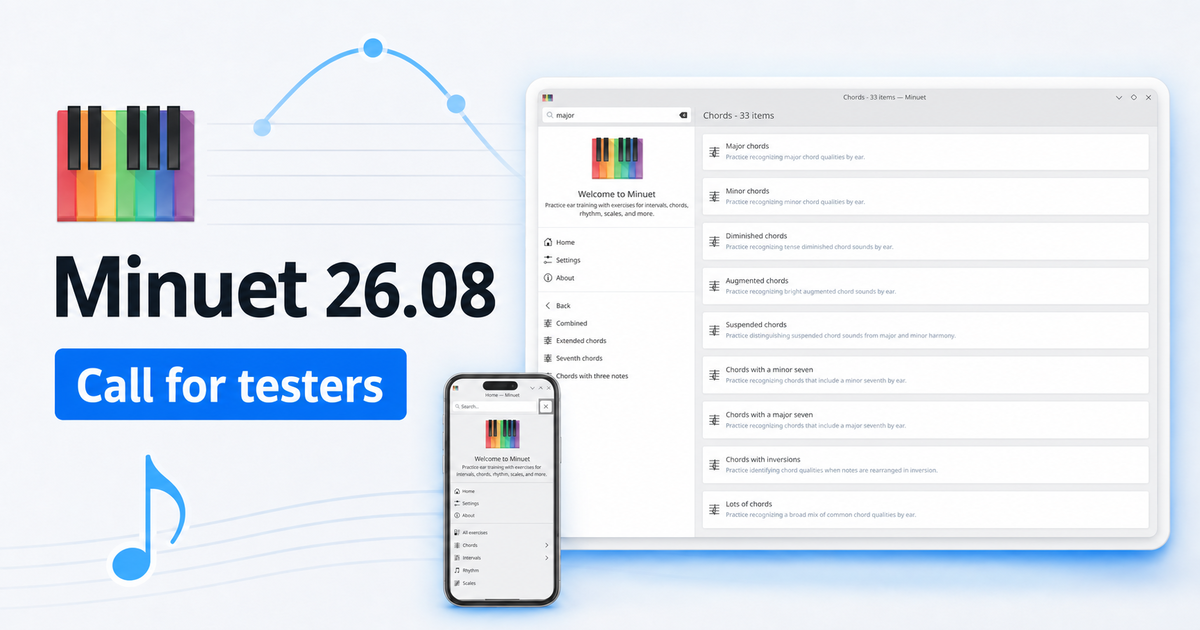
Minuet is a KDE's application for music education. It helps students and musicians train their ears with exercises for intervals, chords, scales, and rhythms. Minuet 26.08 is shaping up to be a particularly exciting release, with new ways to practice, a redesigned interface, and support for more platforms. We would love your help testing these changes before the final release. Try the exercises described below, explore the application on your devices, and tell us about any problems you find.
CI builds are beta snapshots rather than finished releases, so please do not rely on them for important work. Installation instructions are at the end of this post.
A redesigned, responsive interface
Minuet has a new interface built to work well on both desktop and mobile screens. The home page and navigation drawer make exercise categories easier to find, while the exercise browser presents each activity as a card with a short description. Your current category remains highlighted, and the new search field filters exercises by their translated names and descriptions. Exercise pages have also been reorganized to use the available space better on narrow windows and phones.
Things to test:
- Browse every category from the drawer and return to the home page.
- Search using full and partial exercise names, descriptions, different letter cases, and your system language.
- Check the empty-search-results message and clear the search afterward.
- Resize the window from very wide to very narrow and look for clipped controls, overlapping text, unnecessary scrollbars, or lost navigation state.
- Try keyboard, mouse, and touch input where available, as well as both light and dark color schemes.
- Answer questions correctly and incorrectly and check the answer animation, keyboard, staff, and controls.
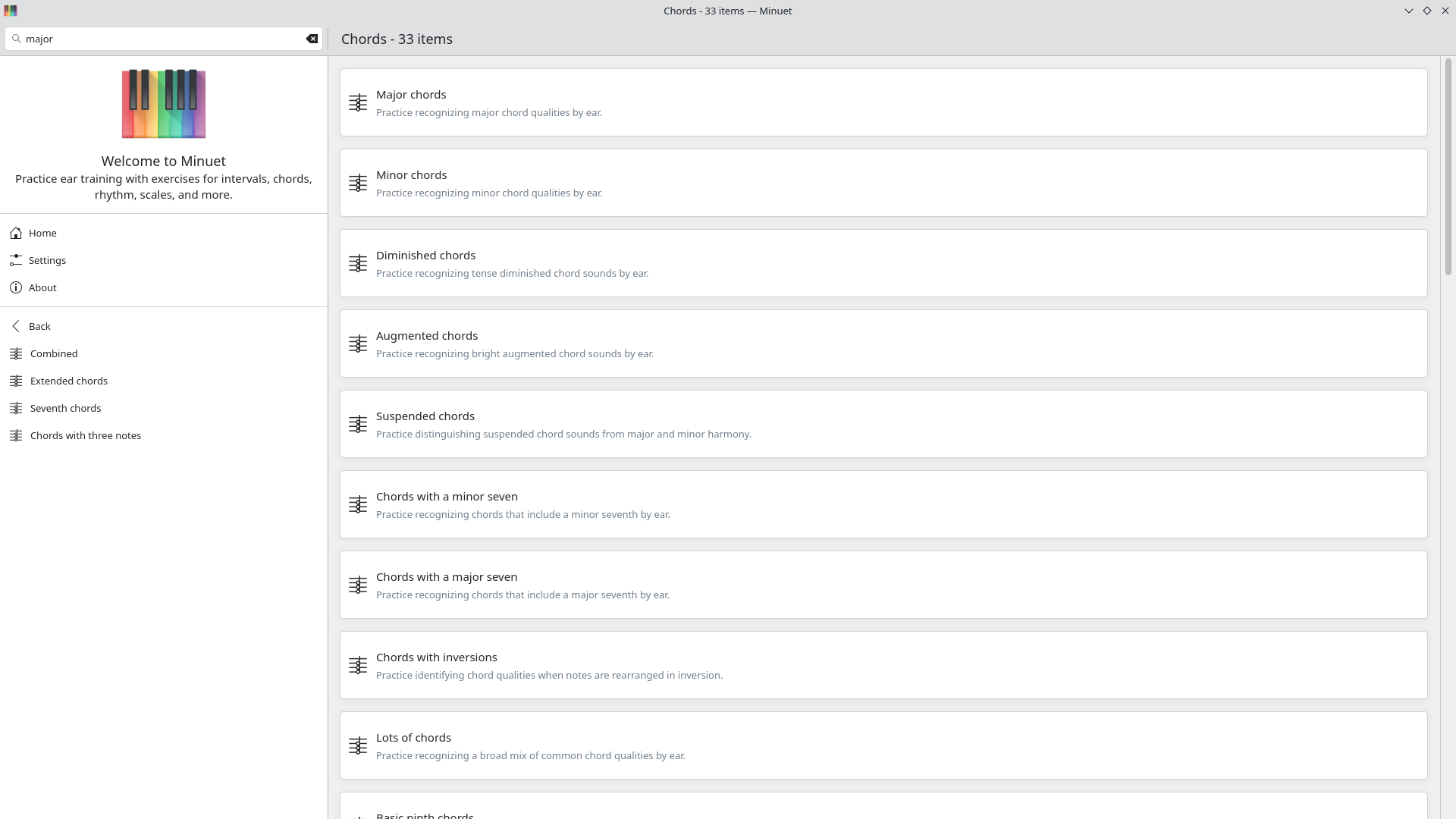
The new exercise browser with several descriptive cards visible and a search term entered in the drawer
Guides for first-time users
The first melodic, rhythmic, singing, or clapping exercise you open now offers a short interactive guide (based on new Kirigami-addons onboard module). Each guide points out the controls and feedback relevant to that type of practice. You can decline the guide, finish or cancel it, and open it again later with the Help button.
Things to test:
- Accept and complete each of the four guides: melodic, rhythmic, singing, and clapping.
- Choose Not Now, leave the exercise, and confirm that Minuet does not repeatedly interrupt you.
- Cancel a running guide and check that the exercise returns to its normal state.
- Start a guide again from the Help button after completing or declining it.
- Check that callouts point to the correct controls at different window sizes.
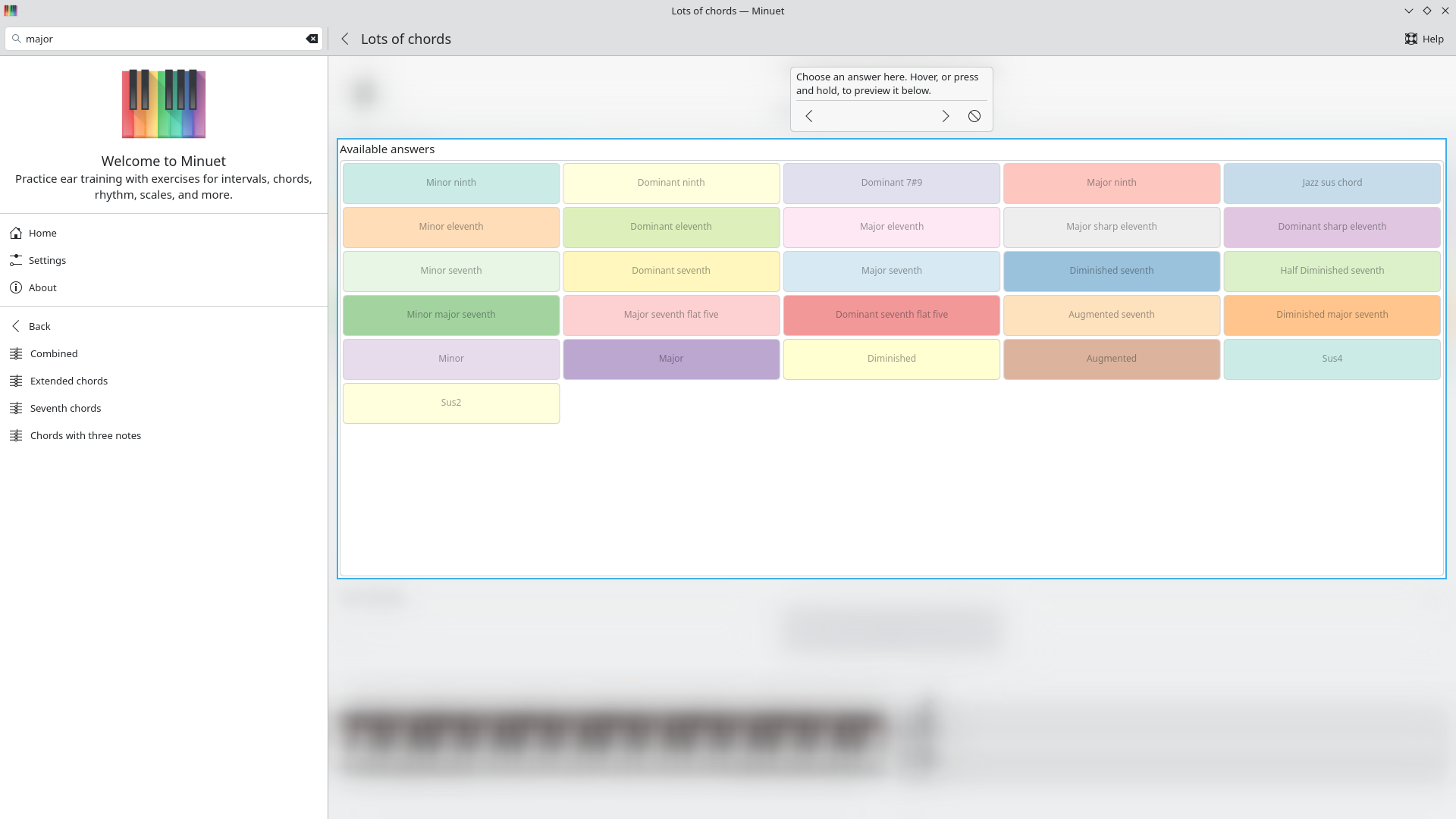
An exercise page with an onboarding callout highlighting the answer controls
More control over practice and sound
The new settings page gathers Minuet's everyday controls into Practice, Sound, and Microphone groups. You can change exercise speed, rhythm tempo, the number of rhythm patterns, test length, playback volume, melodic instrument, and percussion sound. Singing and clapping settings include the microphone input, voice class, pitch tolerance, timing tolerance, and calibration guidance. A collapsed Advanced section exposes detection algorithms and thresholds for difficult microphones or noisy rooms, with an option to restore the defaults.
Settings are persistent, so your choices should still be present the next time Minuet starts.
Things to test:
- Change each basic setting and confirm that the next exercise uses the new value.
- Select instruments from different General MIDI groups and try several percussion sounds.
- Restart Minuet and confirm that your choices were saved.
- Test microphone selection with no input device, one device, and multiple devices if possible.
- Expand and collapse the Advanced section, adjust its controls, and use Reset to Defaults.
- Check helper text, control labels, ranges, keyboard navigation, and layouts on narrow screens.
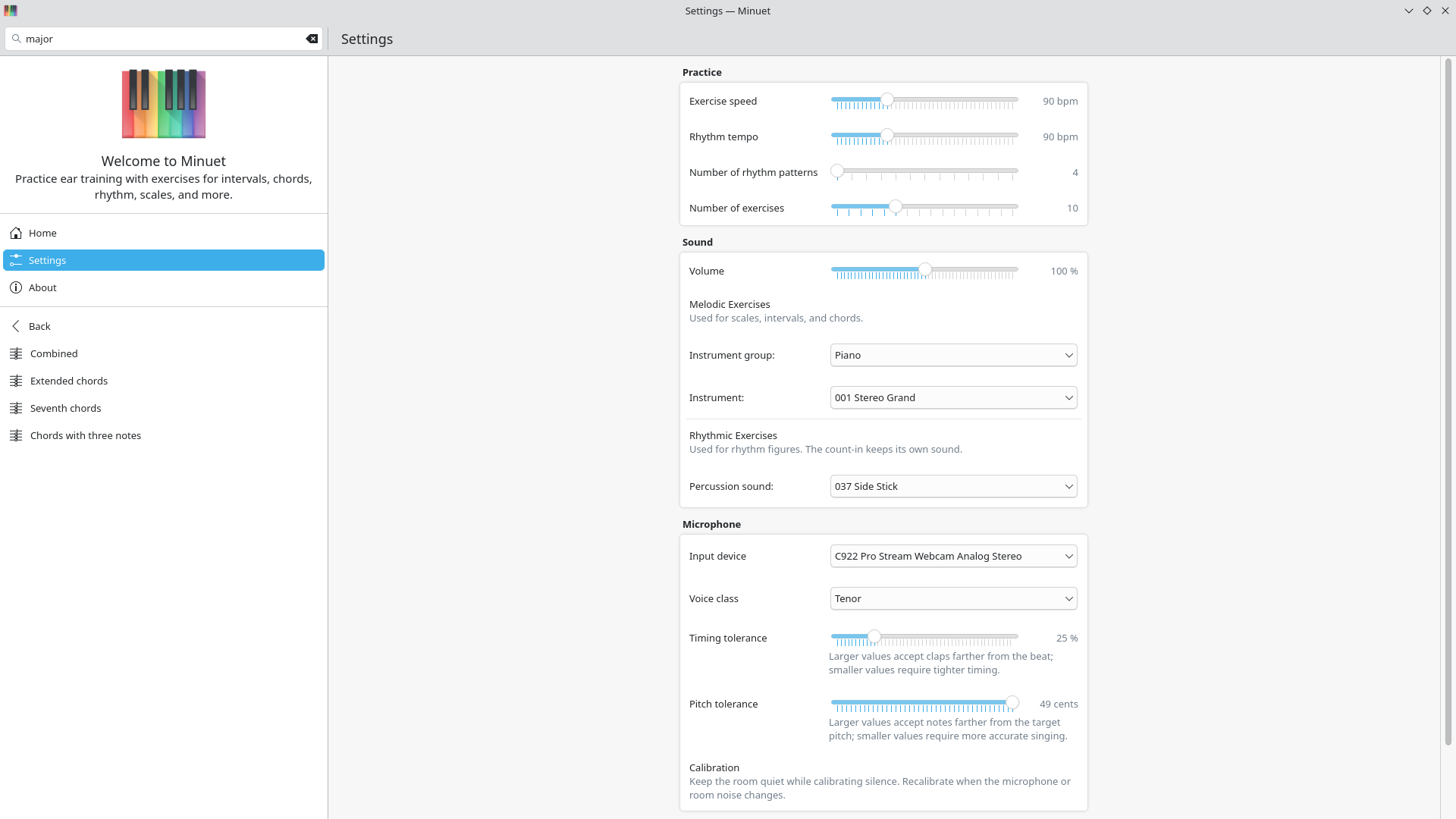
The settings page showing the basic controls sections
New melodic-interval exercises
Minuet previously separated ascending and descending melodic intervals. The new Melodic intervals collection mixes both directions, requiring you to identify the interval itself rather than anticipate its direction. It includes focused groups such as seconds or sixths, combinations such as fourths and fifths, and broader challenges covering compound intervals all the way through the fifteenth.
Things to test:
- Confirm that questions include both ascending and descending intervals.
- Work through focused, mixed, and compound-interval groups, including Second to 15th.
- Replay questions and compare what you hear with the piano keyboard and staff.
- Check enharmonic spellings, accidentals, ledger lines, answer choices, and scoring.
- Start and stop a test run and verify that its length matches the configured number of exercises.
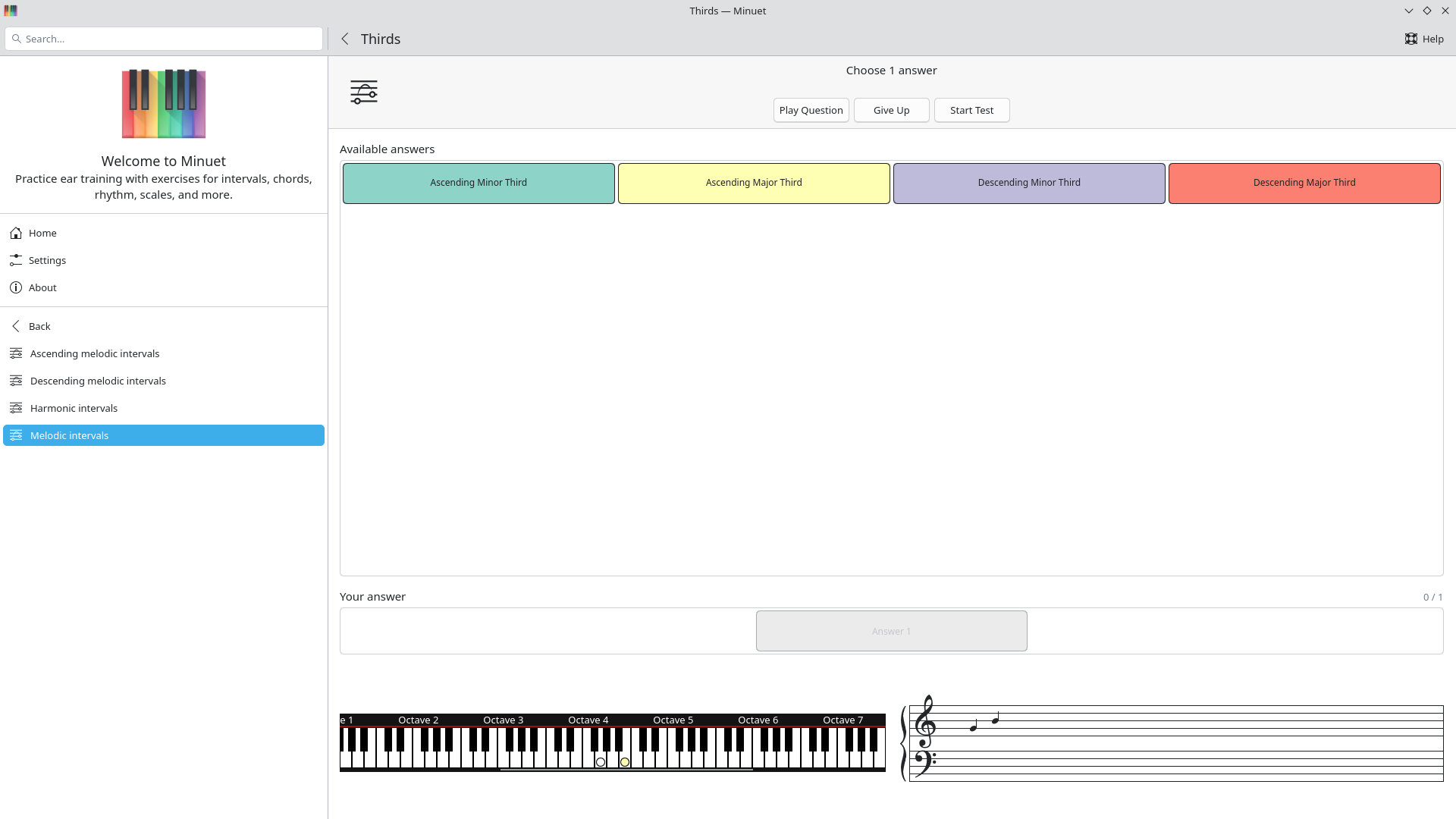
A compound melodic-interval question with its notes visible on both the staff and piano keyboard
Read and sing
Intervals and scales can now be practiced with your voice. After you choose Read and sing, Minuet plays a count-in and a reference note, listens through the microphone, and compares your pitch and timing with the target. The exercise view provides live input, pitch, and onset feedback. Scale exercises extend the same feedback across a complete sequence of notes.
Things to test:
- Sing intervals and scales in each voice class: soprano, alto, tenor, and bass.
- Try accurate notes, notes that are deliberately sharp or flat, early or late entries, and incomplete scales.
- Change the pitch tolerance and confirm that the result becomes stricter or more forgiving.
- Calibrate silence in a quiet room and with moderate background noise.
- Try built-in, USB, and Bluetooth microphones where available, including switching devices while Minuet is running.
- Deny and later grant microphone permission on platforms that request it.
- Check that the interface remains responsive while audio is being analyzed.
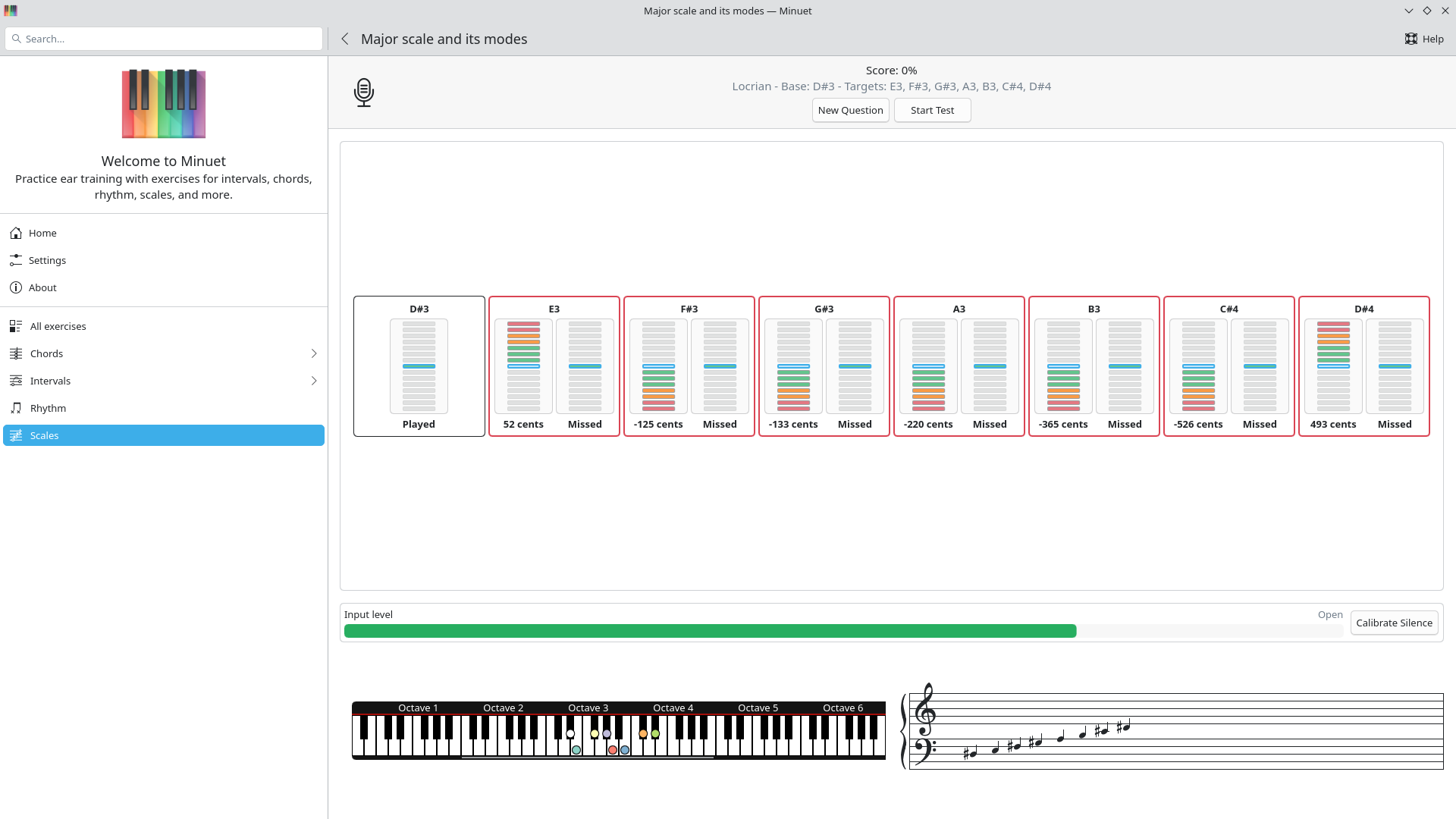
A scale-singing exercise showing the target notes, live input meter, and pitch feedback
Read and clap
Rhythm exercises now offer a Read and clap mode. Minuet displays a rhythm, gives you a four-beat count-in, records your claps, and compares their onsets with the expected beats. The view includes an input meter, silence calibration, and timing feedback, while the settings let you tune the accepted timing tolerance.
Things to test:
- Clap easy and medium patterns at slow, moderate, and fast tempos.
- Try clapping exactly on the beat, near the tolerance boundary, and deliberately early or late.
- Add, omit, or double a clap and check that the feedback identifies the mistake.
- Change the timing tolerance and verify that scoring changes accordingly.
- Calibrate in quiet and noisy environments and watch the input-level meter.
- Check that the count-in finishes before Minuet begins evaluating your claps.
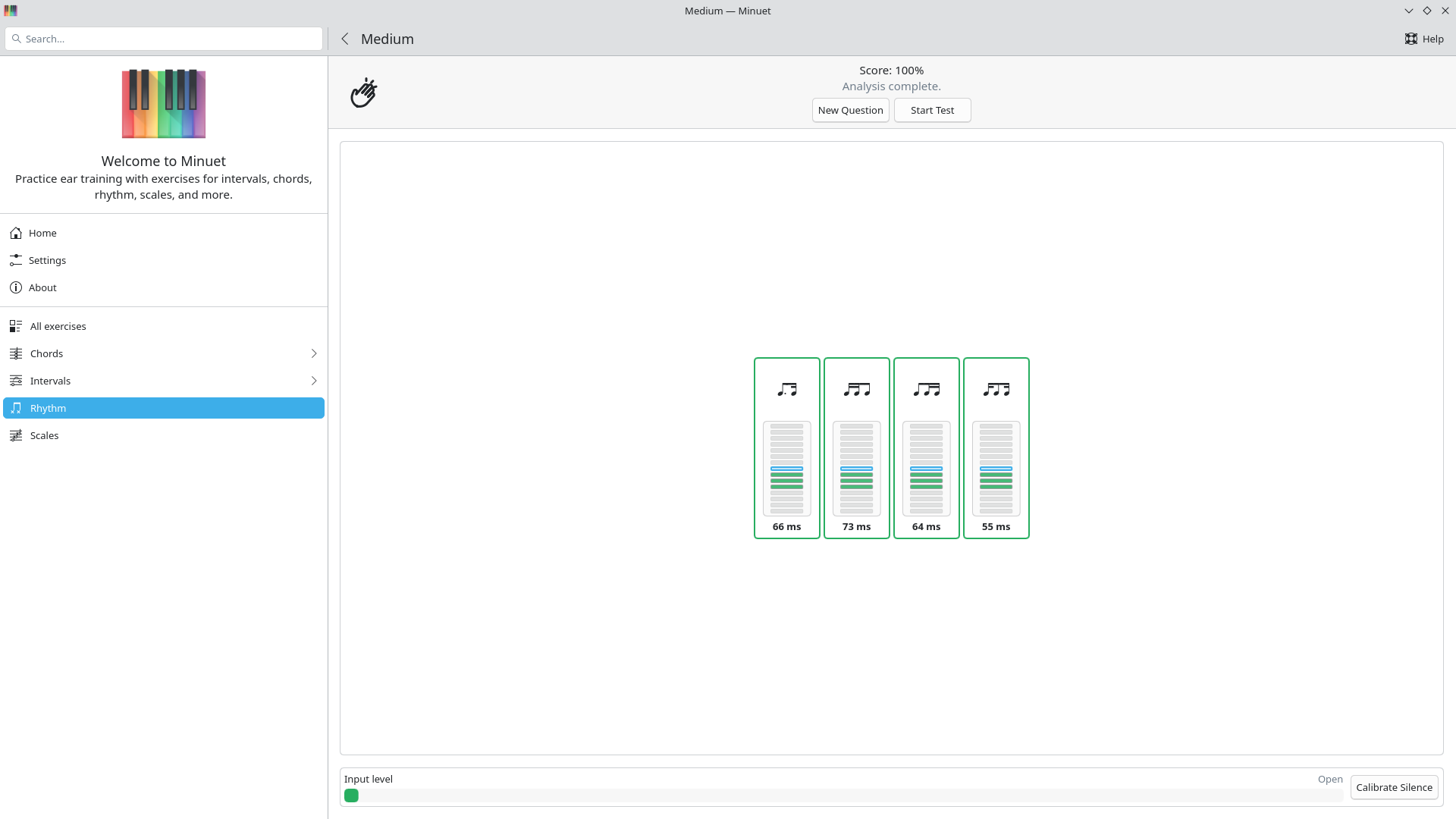
A completed clapping exercise with the rhythm cards, input meter, and timing feedback visible
Rhythms with rests
New Easy with rests and Medium with rests categories mix sounded notes with silent positions. You can identify these patterns by ear or read and clap them. In listening mode, Minuet avoids presenting answer choices that would sound identical; in clapping mode, every note-and-rest combination remains available.
Things to test:
- Listen to easy and medium patterns and verify that notes and rests occur in the displayed positions.
- Check that the available listening answers are audibly distinct.
- Clap through the rests without adding sounds and confirm that silent beats are evaluated correctly.
- Replay patterns, vary the rhythm tempo and pattern count, and try both single questions and test runs.
- Look for incorrect rest symbols, spacing, playback duration, or answer evaluation.
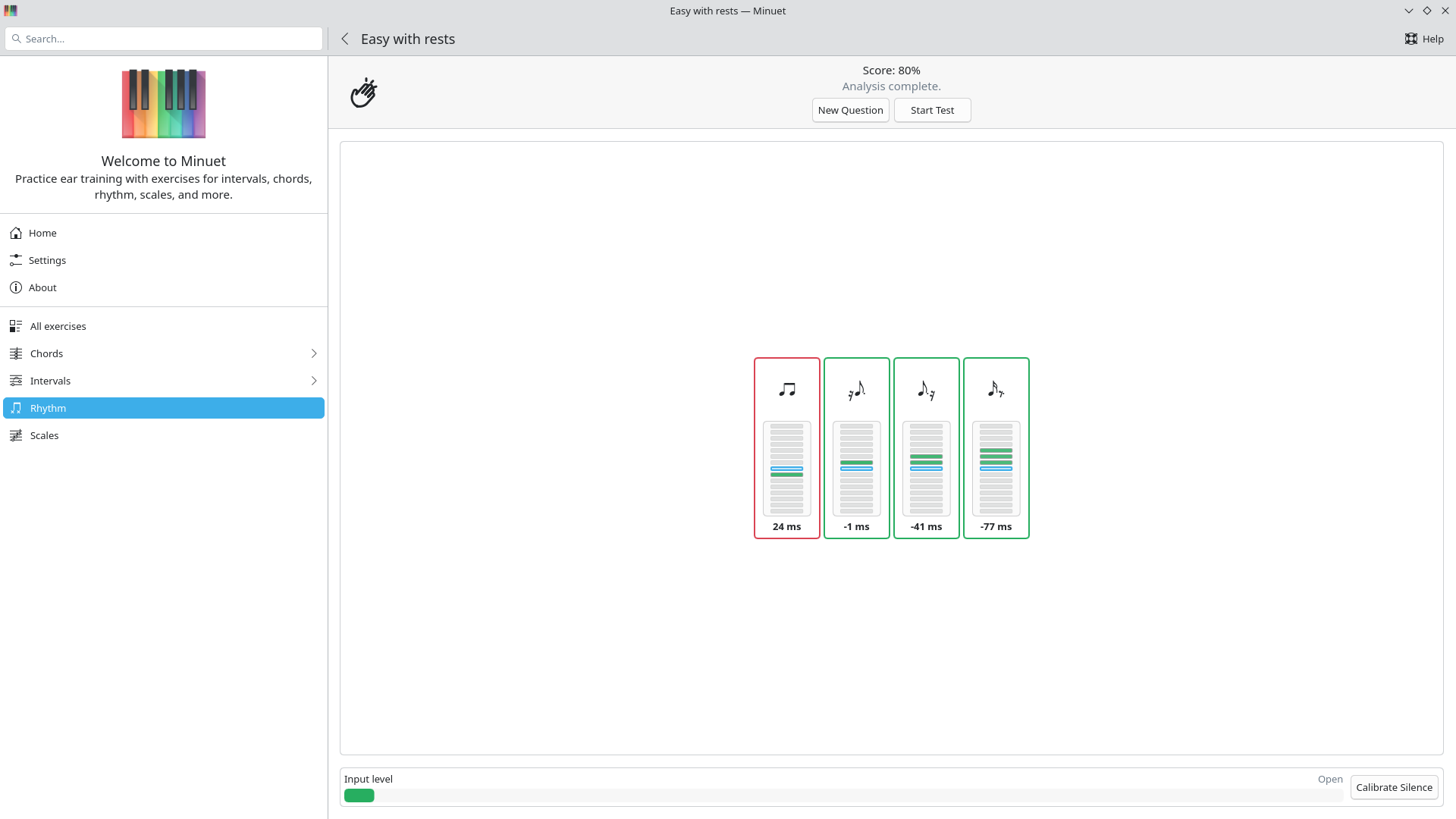
An Easy rhythm question containing several clearly visible rests
Minuet on more devices
Minuet's interface and audio stack have been made more portable. Android builds now use FluidSynth and share the same streamlined interface as the desktop version. macOS builds are available for both Intel and Apple Silicon, with fixes for application data, translations, icons, audio, and microphone permissions. This cycle also introduces initial iOS build support, although iOS packages are not yet published by the CI pipeline.
Things to test:
- Install, launch, close, and reopen Minuet on as many supported devices as possible.
- Check the application icon, splash screen, About page, system language, light/dark theme, and screen rotation where applicable.
- Run listening, singing, and clapping exercises and check playback, latency, recording permissions, and device selection.
- On mobile, test drawer gestures, the on-screen keyboard, compact layouts, safe areas, and back navigation.
- On macOS, compare Intel and Apple Silicon builds if both kinds of hardware are available.
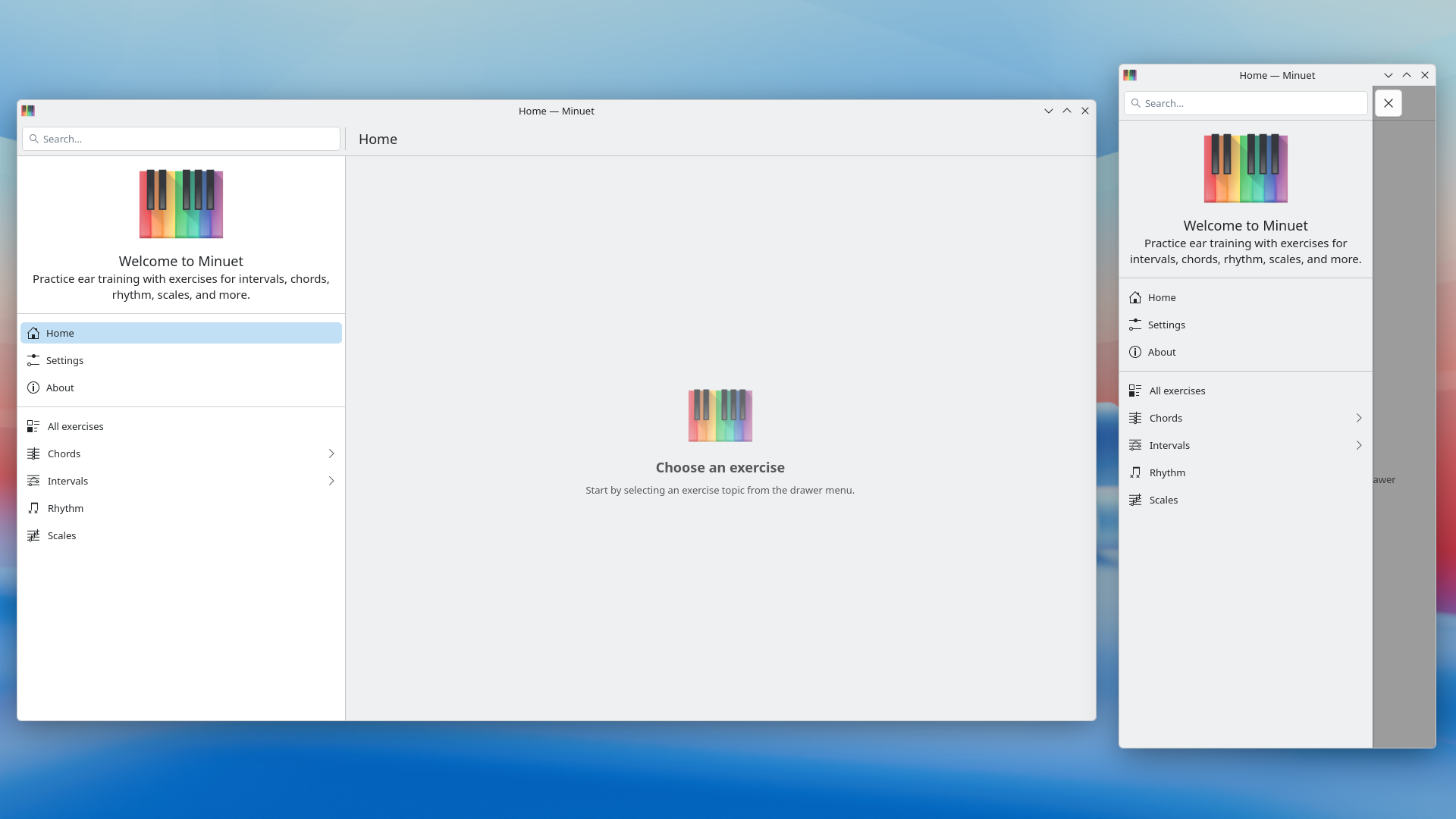
Minuet's home shown side by side with desktop and mobile form factors
Under the hood
The visible changes are backed by a substantial technical update. Staff rendering now follows the Standard Music Font Layout (SMuFL) metadata from the Bravura music font, improving the placement of noteheads, stems, accidentals, ledger lines, clefs, and braces. FluidSynth support has been improved across platforms, while Aubio microphone analysis runs in a worker thread to keep the interface responsive. The QML and C++ code has also been split into more focused controllers and components, and automated coverage has grown for exercise evaluation, rests, audio analysis, and settings.
Things to test:
- Inspect simple and dense notation, including chords, accidentals, compound intervals, ledger lines, treble and bass staves, and narrow layouts.
- Listen for missing notes, wrong instruments, stuck sounds, timing drift, or audio that continues after leaving an exercise.
- Navigate rapidly between exercises and settings while audio is playing or the microphone is active.
- Run long singing and clapping sessions and watch for freezes, delayed feedback, excessive CPU use, or crashes.
- Check that existing chord, scale, interval, rhythm, test, replay, and give-up workflows still behave as they did before.
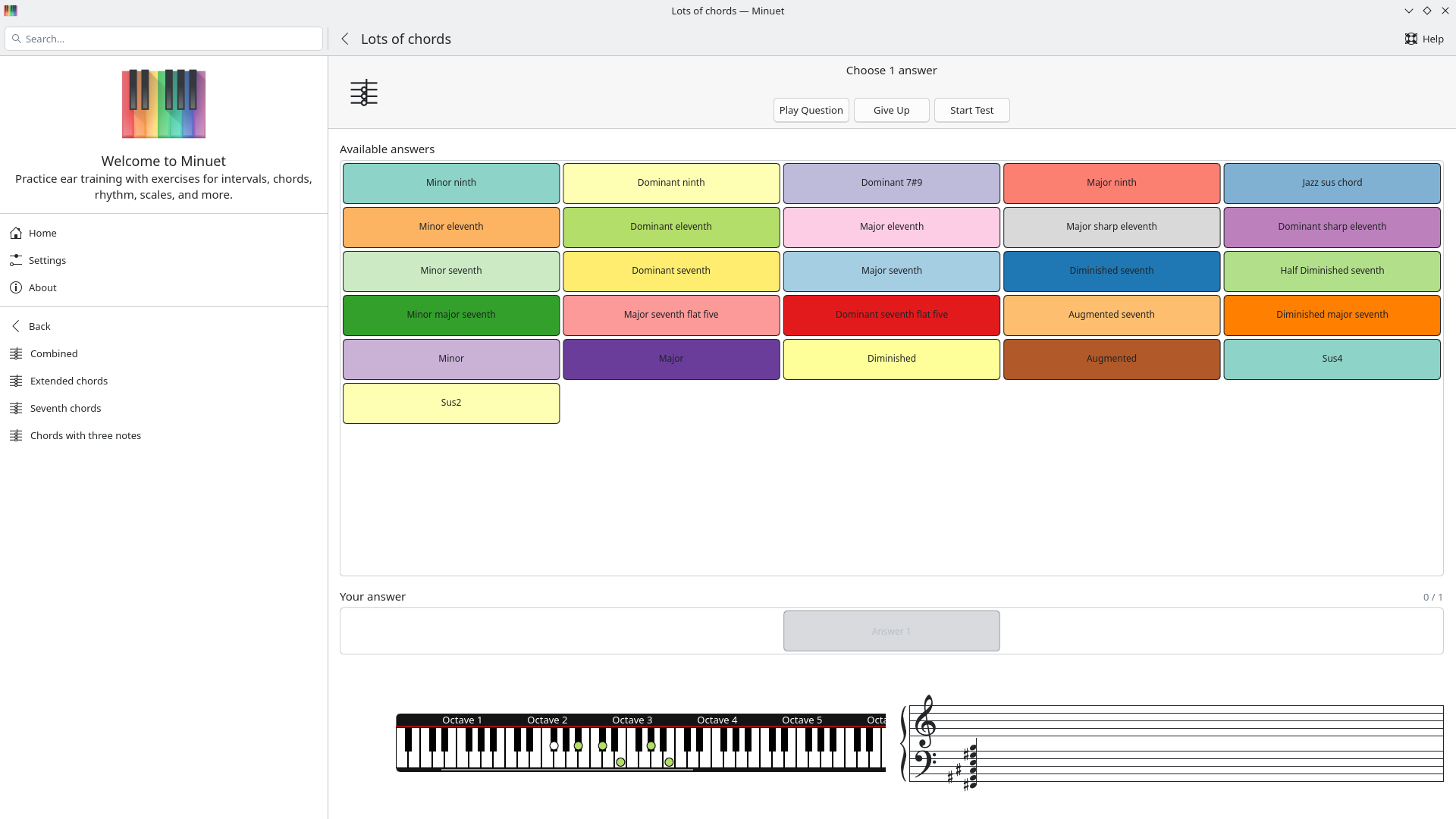
A dense staff containing a chord, accidentals, and stems
Installing a CI build
Open the list of successful release/26.08 pipelines and select the newest pipeline. On its Jobs page, find the deployment job for your platform and use its download-artifacts button. Extract the downloaded ZIP archive before following the platform-specific steps below.
Artifacts are temporary: the Windows, macOS, and Android packages normally expire after three days, and the Flatpak packages after seven days. If a download is no longer available, return to the pipeline list and choose a newer successful pipeline. These packages are development snapshots and may trigger warnings about installing software outside an app store.
Linux
- Download the artifact from the
flatpak-amd64job. The archive is namedFlatpak_artifacts.zip. - Extract the archive and open a terminal in the extracted directory.
Launch Minuet from your application menu or run:
flatpak run org.kde.minuet
To test translations, also install the locale bundle:
flatpak install --user ./minuet-locale.flatpak
Install the application bundle:
flatpak install --user ./minuet.flatpak
The archive also contains minuet-debug.flatpak, which is useful for debugging but is not required for normal testing.
Windows
- Download the artifact from
craft_windows_qt6_x86_64. - Extract the archive and open its
kde-ci-packagesdirectory. - Run the included Minuet installer and follow its prompts.
- If Windows displays a security warning for the development build, review the publisher and file details before choosing to continue.
The CI package targets 64-bit Windows on x86-64 processors.
NOTE: audio drivers are particularly worse on Windows, you can find some false negatives on such platform when compared to Linux, Android, and macOS.
macOS
Choose the job that matches your Mac:
craft_macos_qt6_arm64for Apple Silicon Macs;craft_macos_qt6_x86_64for Intel Macs.
Download and extract the artifact, open kde-ci-packages, then open the included Minuet disk image or package and install the application. Because this is a development snapshot, macOS may show a Gatekeeper confirmation the first time you open it. Please also check that Minuet requests microphone access when starting a singing or clapping exercise.
Android
Choose the package matching your device:
craft_android_qt611_arm64for most current phones and tablets;craft_android_qt611_x86_64for a compatible x86-64 device or emulator.
Download and extract the artifact, locate the Minuet APK in the package directories, and open it on the device. Android may ask you to permit installations from the application that opened the APK. Review the prompt, install Minuet, and disable that permission again afterward if you do not normally sideload applications.
Alternatively, developers with Android platform tools can connect a device or emulator and run:
adb install /path/to/minuet.apk
If an older development build is already installed and Android rejects the update because its signature differs, uninstall that build first. This removes its local Minuet settings and data.
iOS and FreeBSD
The 26.08 branch contains initial iOS support and is checked by the FreeBSD CI build, but the pipeline does not currently publish an installable package for either platform. The download instructions above therefore cover Linux, Windows, macOS, and Android only.
Send us your results
Please report bugs through KDE's Minuet bug tracker. Include the pipeline or commit you tested, your operating system and hardware architecture, clear steps to reproduce the problem, and what you expected to happen. For singing, clapping, or sound problems, microphone and audio-device details are especially helpful. Screenshots, short screen recordings, and relevant terminal output can make layout and audio issues much easier to diagnose.
A special shoutout and thanks to the KDE Sysadmin team for handling dependency additions, regenerating the CI images, and providing support with all the required CI/CD infrastructure.
Thank you for helping us make Minuet 26.08 a solid release for music learners everywhere!